
How long does setup take?
About an hour for the basics: install the theme, choose a style kit, fill in who the site is about, and build your first page from a template.
Step 1: Create a child theme
After the theme is installed from the Marketplace, create a child theme before anything else. Marketplace themes are locked, so their code can’t be edited directly. A child theme is a copy of Artist Pro that you, a developer or our team can change, while Artist Pro itself stays untouched and keeps receiving updates.
A child theme also has its own theme settings, header and footer, so everything you set up in the next steps belongs to it, and is kept when Artist Pro is updated.
How to create the child theme
- Go to Content > Design Manager.
- Find the theme in the file tree: open @marketplace > Adepto Digital > artist-pro, or search for artist-pro.
- Right-click the theme folder and choose Create child theme.
- Give the child theme a name, for example your name or your studio’s name, and click Create child theme.
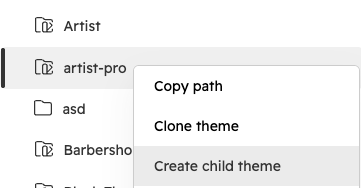
Use the child theme from now on
- Choose the child theme when you edit theme settings and when you create pages.
- Select its blog and system page templates.
- Make any code changes only in the child theme’s files.
Step 2: Choose a style kit and set your theme settings
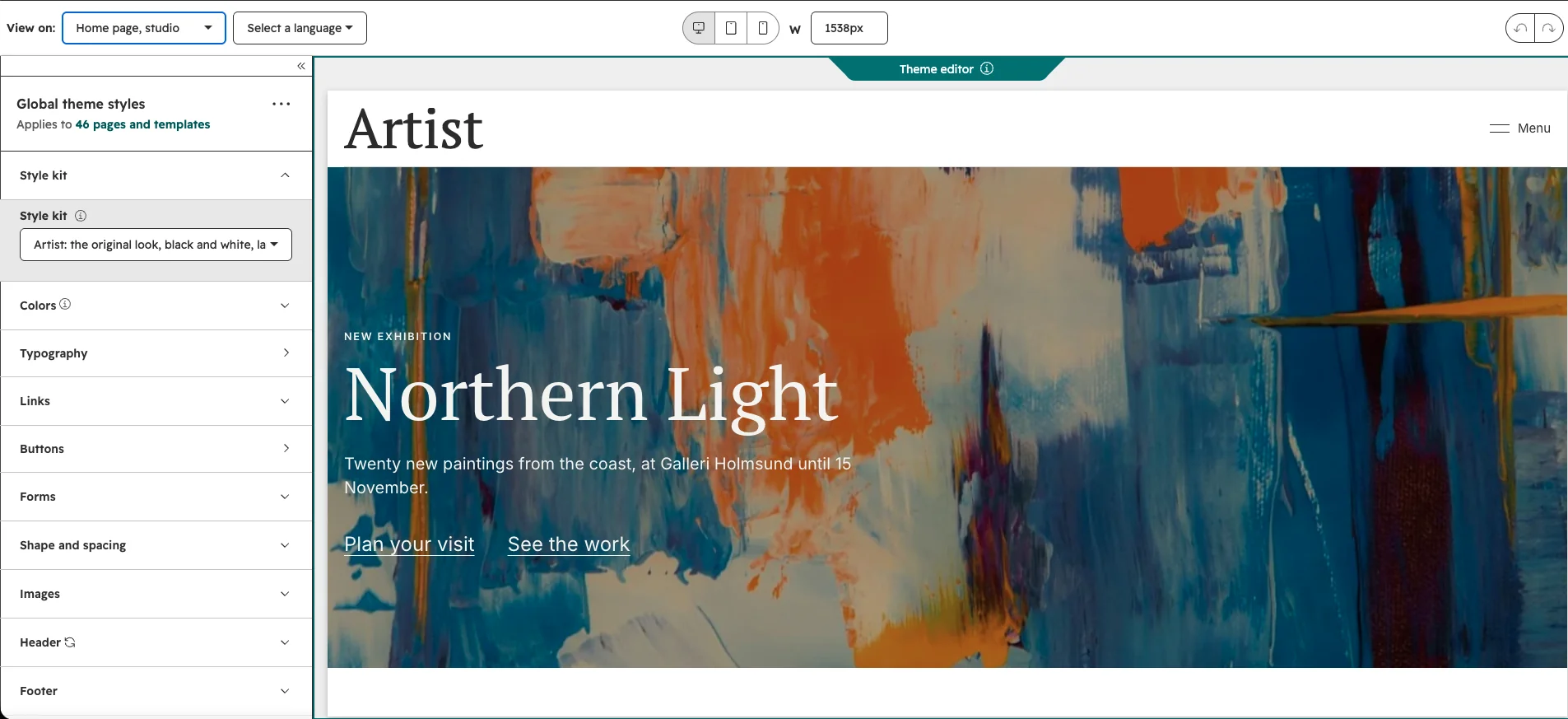
Theme settings control the look of every page at once. Start with a style kit, then fine-tune.
- Go to Settings > Content > Themes & Modules, find your child theme and click Edit theme.
- Under Style kit, choose a look: Artist, Modern, Editorial, Noir, Warm or Bold. Each kit restyles the whole site in one click, with its own colors and self-hosted fonts (fast, with no request to Google Fonts).
- Then adjust the groups below it:
- Colors: your accent color, text colors and backgrounds.
- Typography: heading and body fonts, and sizes for each heading level.
- Links, Buttons and Forms: link style, primary and secondary buttons, and how every HubSpot form on the site looks.
- Shape and spacing: corner radius, content width and spacing.
- Images: image hover effects, caption styles and lightbox colors.
- Header: header layout, the mobile menu (panel, full screen or slide-in), and a sticky or transparent header.
- Footer: footer colors.
- Cards and motion: card styles, and entrance animations, image reveal, parallax and smooth scrolling.
- Click Apply changes, then Publish to update every page that uses the theme.
Step 3: Create a page
- Go to Content > Website Pages and click Create.
- Choose your child theme (based on Artist Pro) as the theme.
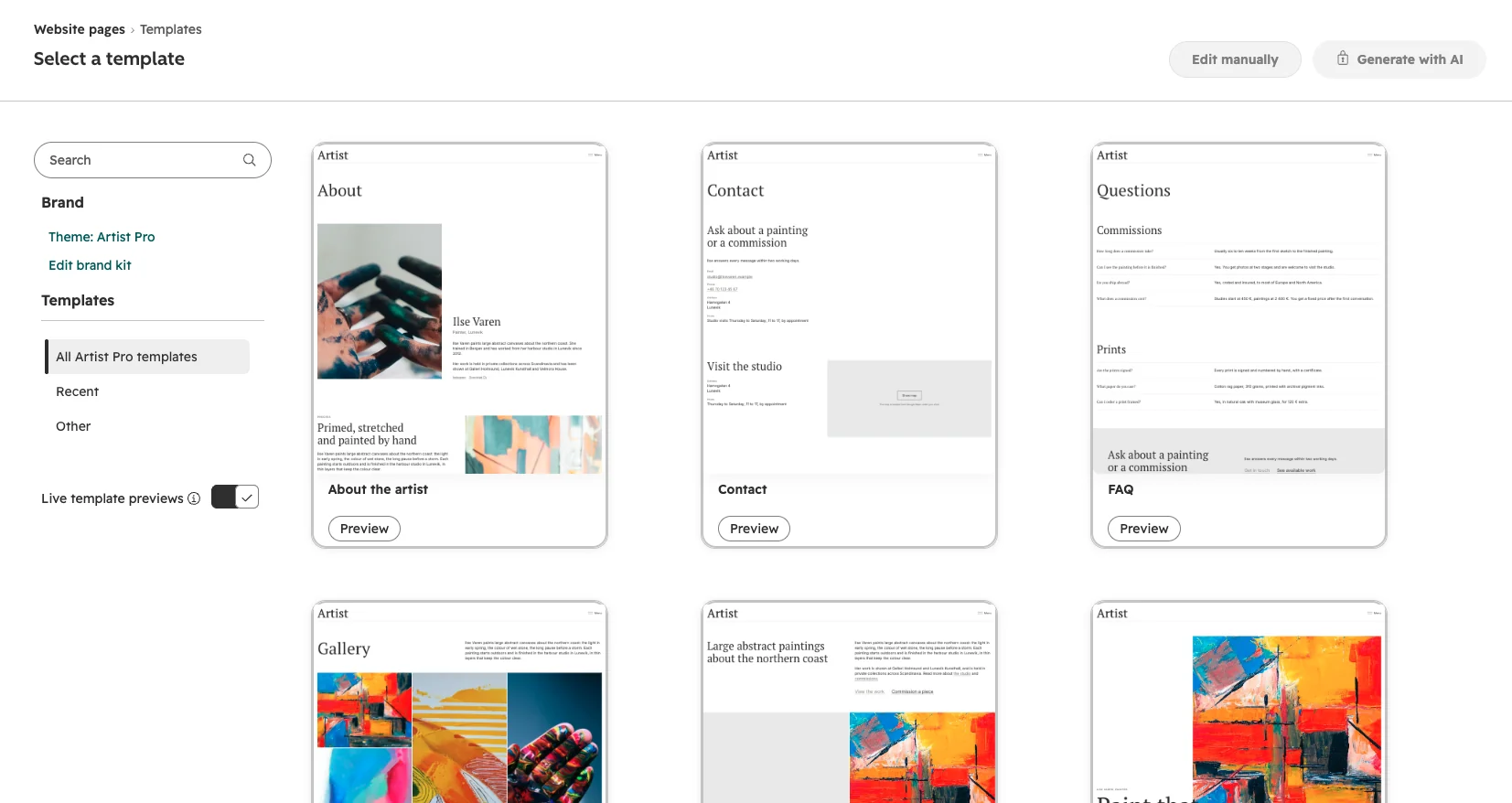
- Pick a template. Each one comes with realistic example content you can replace:
| Template | Use it for |
|---|---|
| Home page | Your front page |
| Home page, editorial | A front page led by large type and a statement |
| Home page, studio | A front page led by a full-width image or video |
| About the artist | Your story, bio and CV |
| Portfolio | All your work, with category filters |
| Project | One work or series in detail |
| Gallery | A collection of images in masonry, rows, a grid or a carousel, with a lightbox |
| Exhibitions and events | Upcoming and past exhibitions and events |
| Exhibition or event | One exhibition or event in detail, with Event structured data |
| Services and commissions | What you offer, and how a commission works |
| Prints and pricing | Prints, products or a price list |
| Press | Press quotes, articles and logos |
| FAQ | Your questions and answers, grouped by topic |
| Contact | Form, contact details and a map that loads only on click |
| Landing page | A campaign page with a simplified header and footer |
| Link in bio | One page of links for your social profiles |
- Click a template and choose Edit manually. Or click Preview to see it first, and choose Edit manually from there.
Step 4: Edit a page
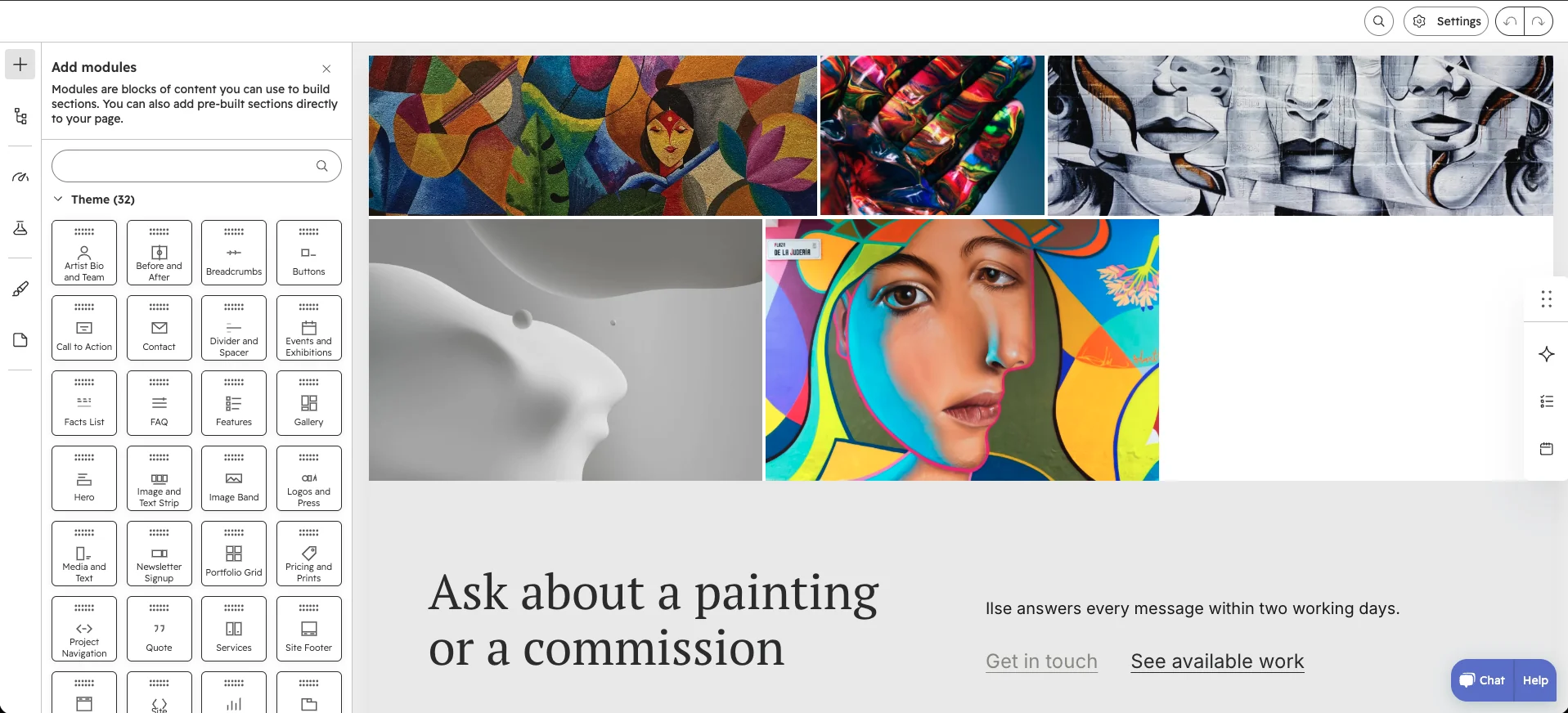
Artist Pro pages are built from sections and modules you can drag, drop, add and remove.
- Name the page: start by giving the page a name. This is its internal name, only visible in HubSpot, and you can change it any time in the page settings (Step 7).
- Add a section or module: click the + in the left sidebar and drag a module or a pre-designed section onto the page.
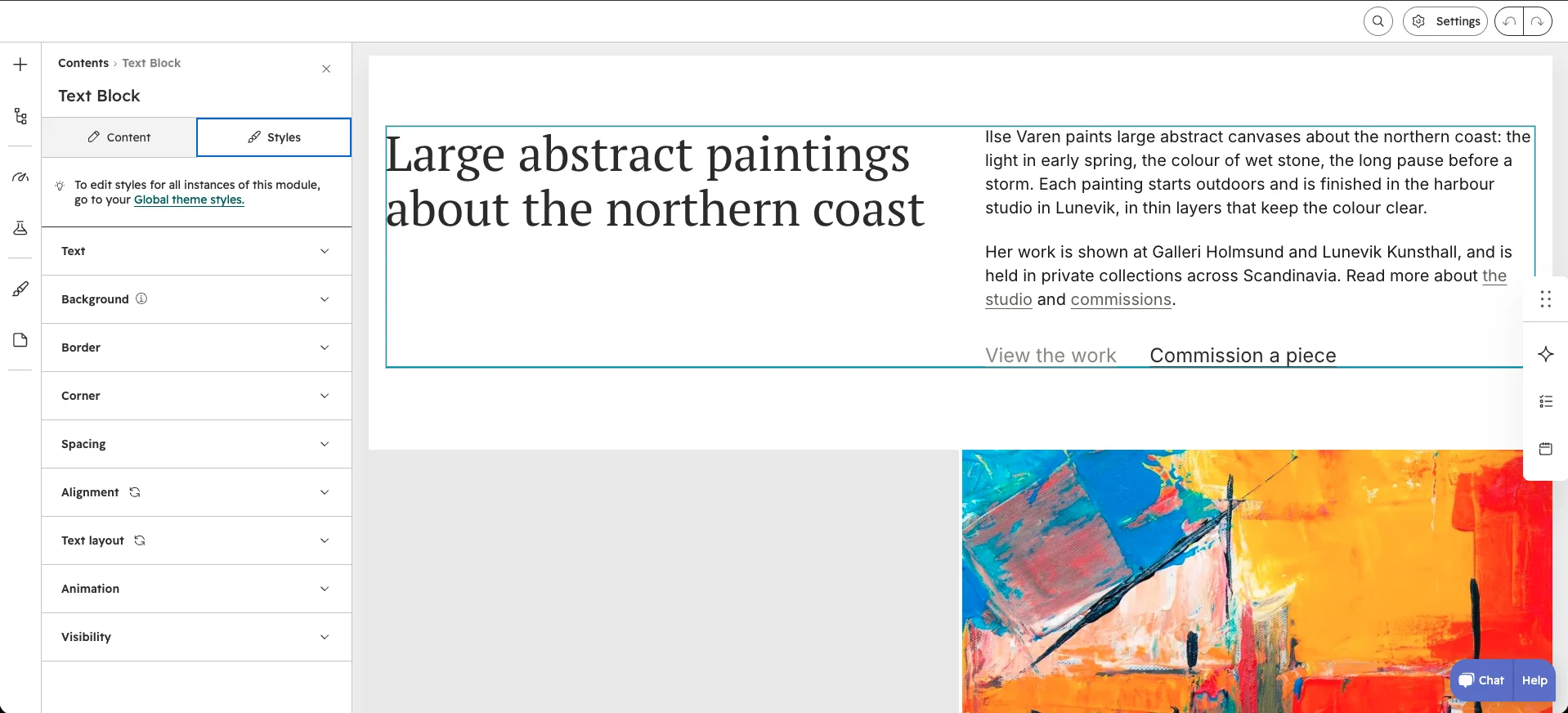
- Edit a module: click it. The sidebar shows its settings in two tabs:
- Content: text, images, buttons, links and layout options.
- Styles: the same tab in every module: text, background, border, corner, spacing, alignment, text layout, animation and visibility on mobile or desktop.
- Only relevant options show: for example, video settings only appear once you choose Video as the media.
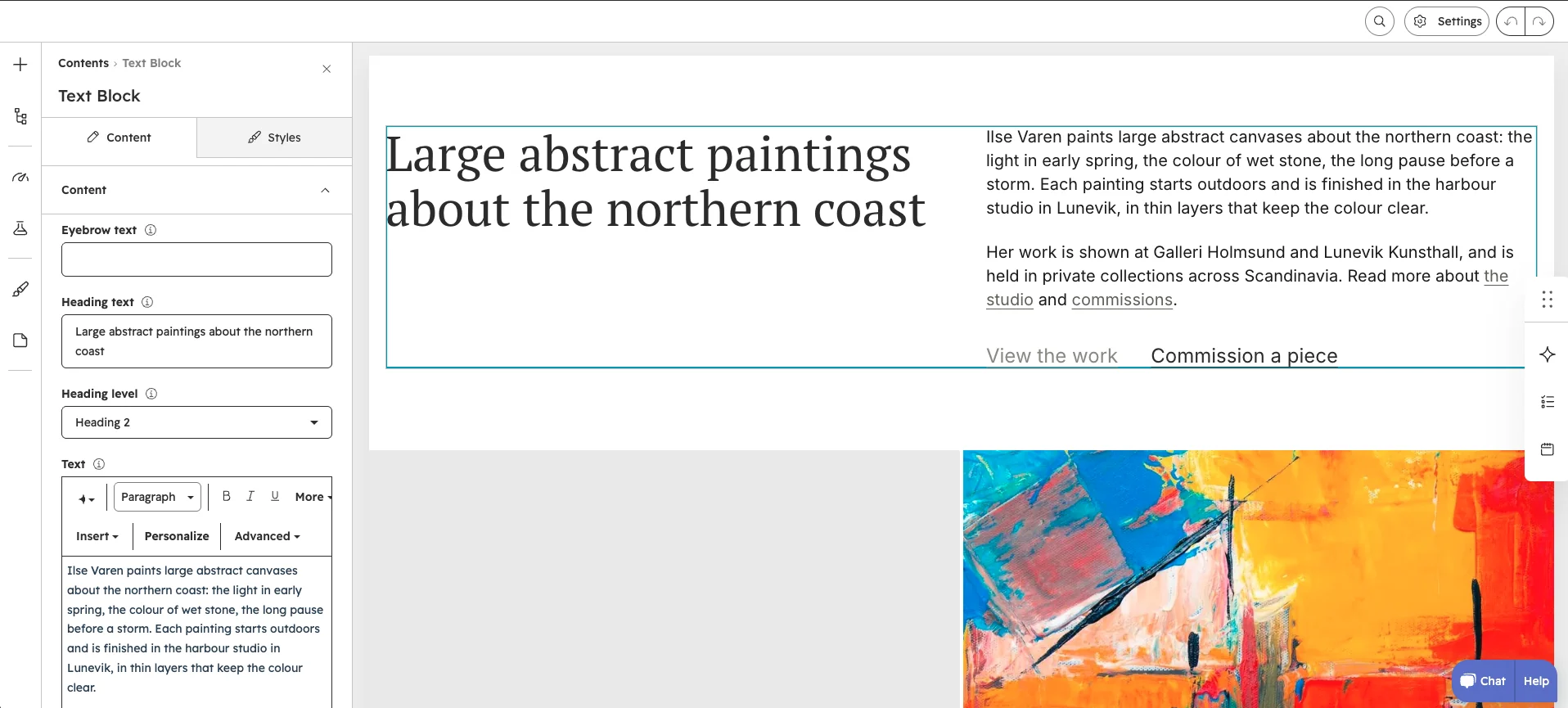
Every image can be a video: wherever a module shows an image, you can choose a YouTube video (it loads only when clicked), an uploaded video file or an embed instead.
Step 5: Add who the site is about (structured data)
Structured data tells search engines and AI assistants who is behind the site: you as an artist, or your studio. You fill it in once, and it’s added to every page automatically.
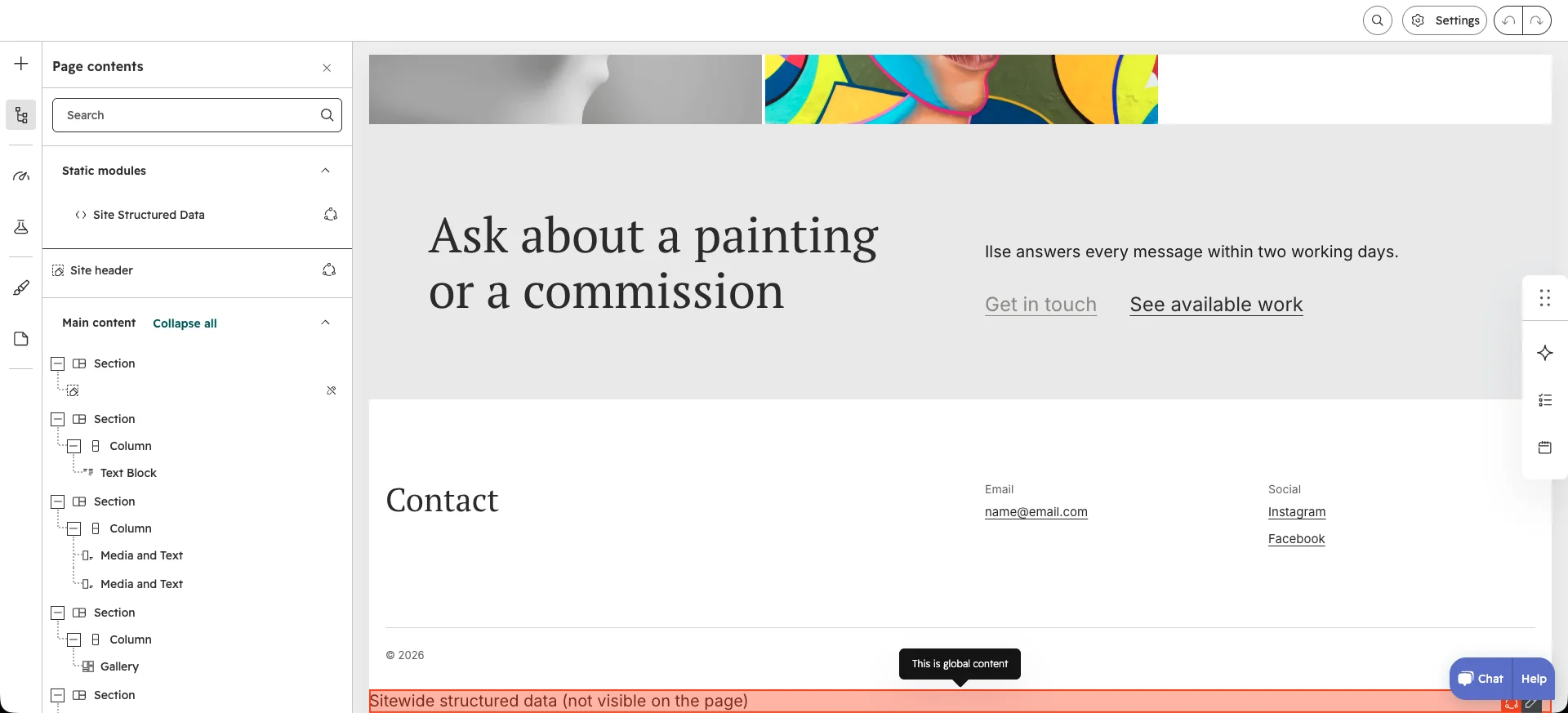
- Open any page built with Artist Pro in the page editor.
- At the very bottom of the page you’ll see a bar: Sitewide structured data (not visible on the page). It only shows while editing. Click it, or open Site Structured Data under Static modules in the page contents panel.
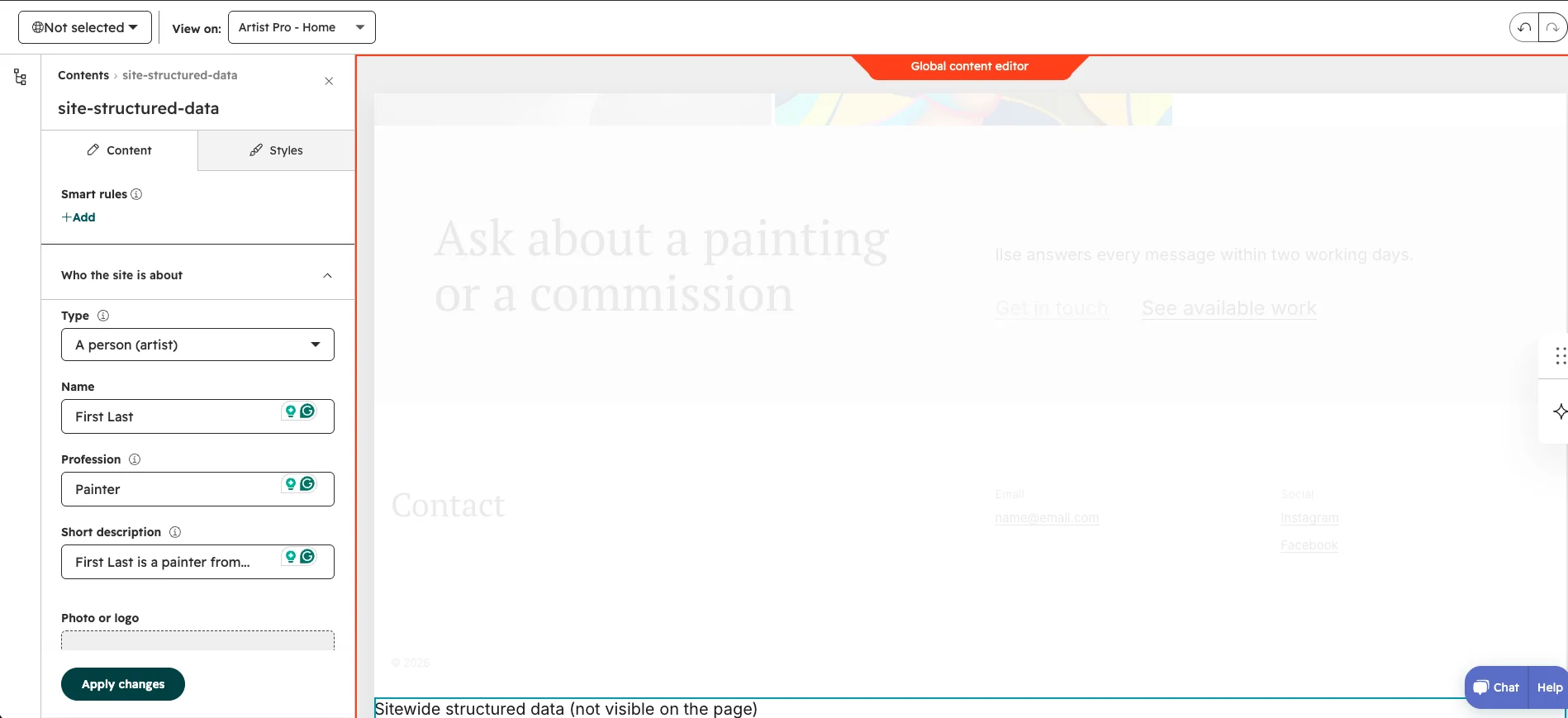
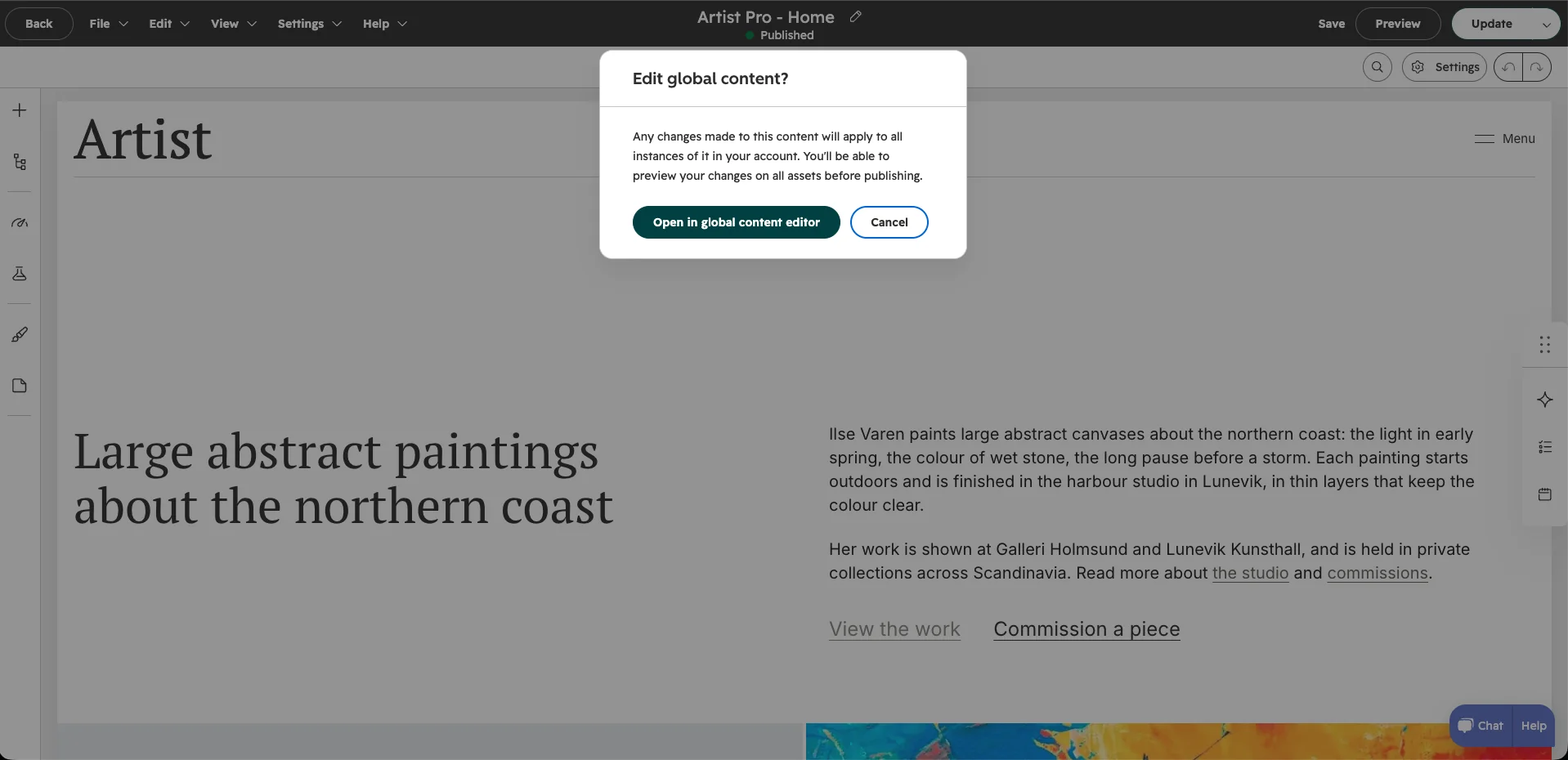
- HubSpot asks whether to edit global content. Confirm: changes apply to every page.
- Under Who the site is about, choose the type (a person, such as an artist, or an organization), then fill in the name, profession, a short description, and a photo or logo, plus any other details you want to include.
- Click Apply changes and publish to save. HubSpot asks for the page settings first (Step 7).
Tip: test any page in Google’s Rich Results Test (search.google.com/test/rich-results). You should see a Person or Organization, plus FAQ, breadcrumbs or events wherever those modules are used.
Step 6: Edit the header and footer
The header and footer are shared by every page.
- In the page editor, click the header (or footer).
- Choose Open in global content editor.
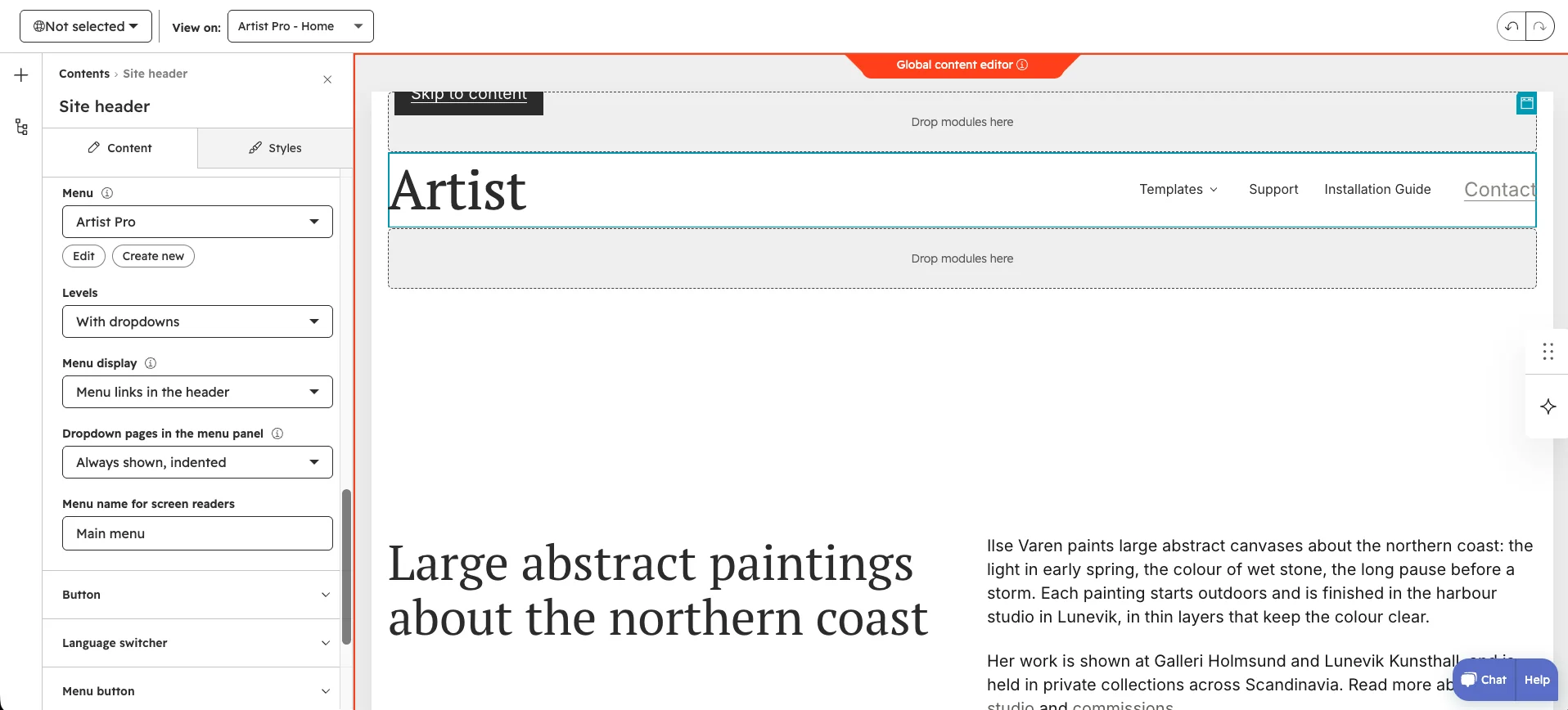
- In the Site header module you can:
- Choose a HubSpot menu and show it with dropdowns.
- Show the menu links in the header, or only a menu button that opens a slide-in panel, with six menu icons to choose from.
- Show a button at the end of the menu.
- Set up the language switcher (shown only when a page has translations).
- Use the logo from your brand settings, or a text wordmark.
- The Site footer module has columns and a footer menu, edited the same way.
- Publish the global content to update every page.
The sticky and transparent header options, and the mobile menu style, are in Theme settings > Header. The Landing page template uses a simpler header and footer.
Step 7: Add the page settings
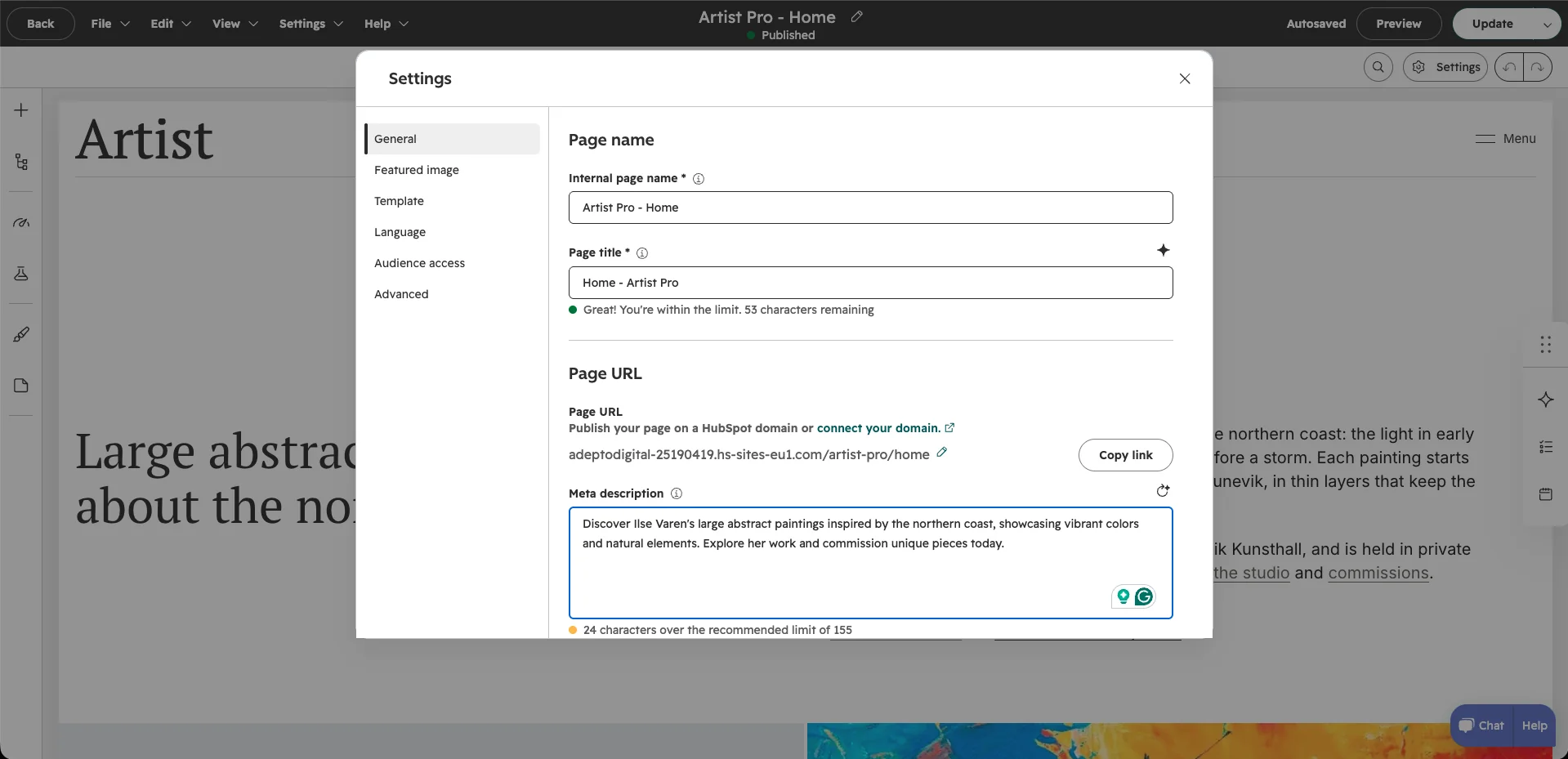
Before you can publish a page, HubSpot needs a few details. Click Settings in the editor and fill in:
- Internal name: the page’s name in HubSpot, only visible to your team.
- Page title: shown in search results and on the browser tab. Keep it under about 60 characters.
- Meta description: the short summary shown in search results, around 150 characters.
- URL: the page’s address. Keep it short and descriptive.
Then click Publish.
Step 8: Set up the blog
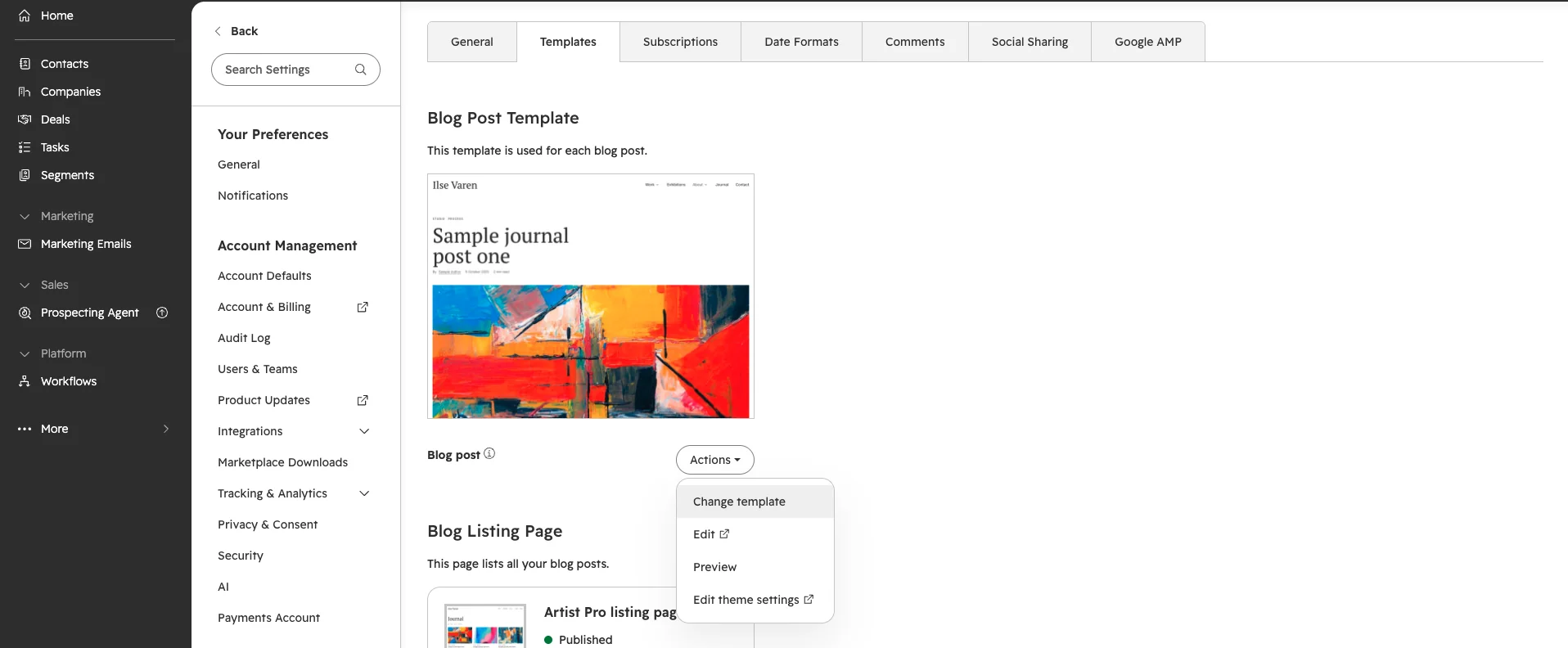
- Go to Settings > Content > Blog > Templates and choose:
- Blog post for posts
- Blog listing for the listing page
- Write a post as usual. The Artist Pro post template adds a post header and BlogPosting structured data automatically.
- On the listing page, show posts as a grid, a list or with the latest post large, with links to your tags.
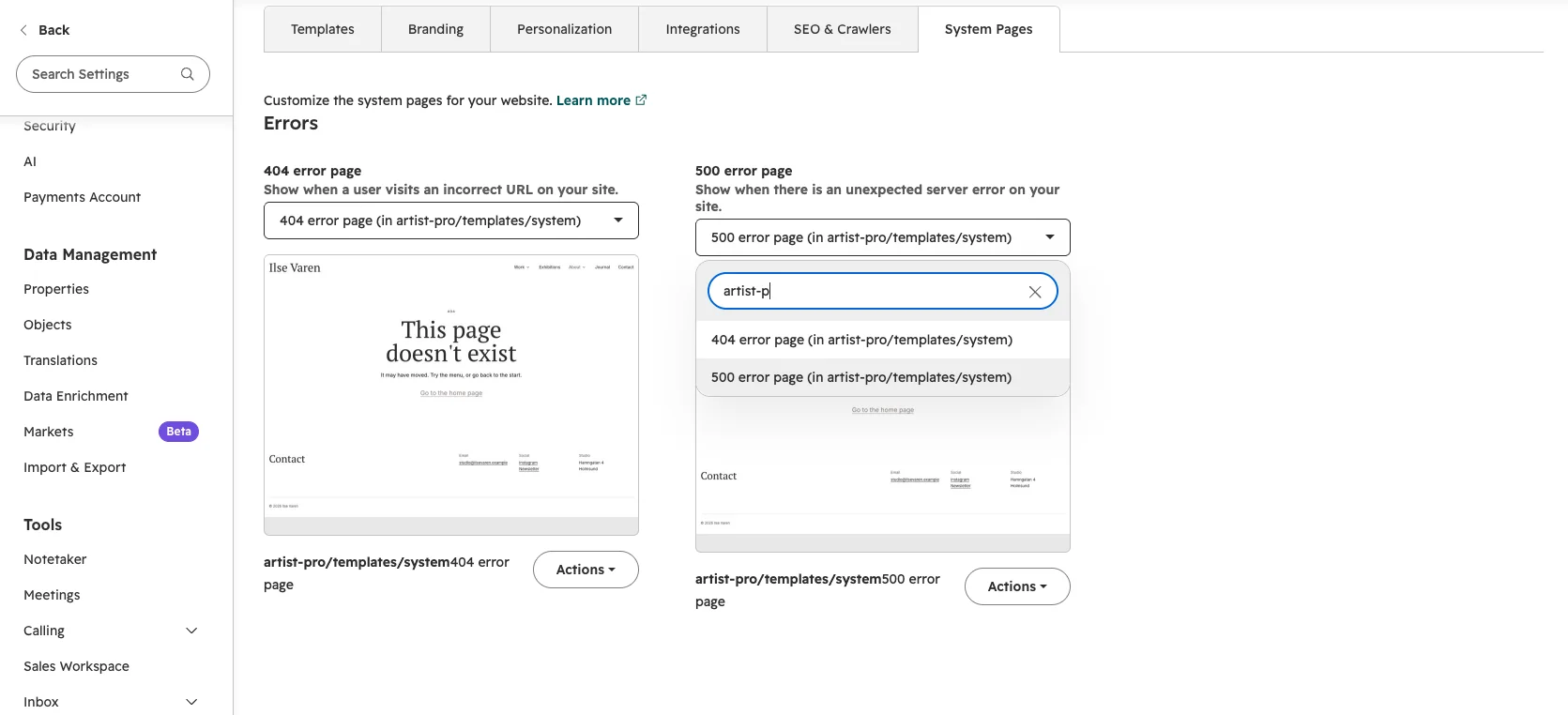
Step 9: Choose the system pages
Artist Pro includes templates for HubSpot’s system pages, so error and email pages match your site.
Go to Settings > Content > Pages > System pages and select the Artist Pro templates for: 404 error, 500 error, password prompt, search results, email subscription preferences, subscription confirmation and backup unsubscribe.
Using private content (Content Hub Enterprise)? Choose the membership templates under Settings > Content > Private content > Templates: sign in, registration, password reset request and create new password.
Step 10: Use the pre-designed sections
Artist Pro comes with 23 pre-designed sections that look finished as soon as you drop them in. Add one from the + panel, then replace the example text and images with your own.
- About you: Artist bio, CV.
- Your work: Featured works, Masonry gallery, Recent work slider.
- Shows and press: Exhibitions, Press quotes.
- Selling: Commission prices, How a commission works.
- Staying in touch: Newsletter.
Make a section your own: every module in a section has the same Styles tab, so you can change the background, spacing and animation without touching the theme settings.
Need help?
Every purchase includes email support for as long as you use the theme, plus 2 hours of customization. Visit the support page or email contact@adeptodigital.com.